
• About Us
    • About Us
    • Join Us
  • Services
    • Seniors
    • Busy Professionals
    • NDIS
    • Retraining Programs
    • Be Connected
    • Discover AI – Made Simple with ReadyTechGo
  • Testimonials
  • News
    • In The Media
    • Client Stories
    • Tech TipsTech tips & tricks
  • Workshops
  • EventsEvent post type.
  • Shop
  • Terms
    • Terms of Service
    • Privacy Policy
    • NDIS Participants
    • Pricing
  • Contact
CALL US
(03) 9434 2020
hello@readytechgo.com.au
ReadyTechGo
  • About Us
    • About Us
    • Join Us
  • Services
    • Seniors
    • Busy Professionals
    • NDIS
    • Retraining Programs
    • Be Connected
    • Discover AI – Made Simple with ReadyTechGo
  • Testimonials
  • News
    • In The Media
    • Client Stories
    • Tech TipsTech tips & tricks
  • Workshops
  • EventsEvent post type.
  • Shop
  • Terms
    • Terms of Service
    • Privacy Policy
    • NDIS Participants
    • Pricing
  • Contact

Tech tips & tricks

  • Home
  • Blog
  • Tech tips & tricks
  • Save Time! How to Sign a PDF Document on Windows

Save Time! How to Sign a PDF Document on Windows

  • Posted by RTG Admin
  • Date May 1, 2018

USING MICROSOFT EDGE
TO SIGN A PDF

No more printing, signing and then scanning!

There are often times when you need to sign or fill in a PDF form that has been sent to you. You could print out the document, fill it in, sign it, scan it and then email it back but that’s all such a hassle for something that should be so simple.

Thankfully with Microsoft Edge (previously known as Internet Explorer), you can do all that without having to print the document!

HOW?

STEP 1:
Right click on the PDF file.

STEP 2:
Go to “Open with” and then click on “Microsoft Edge”

STEP 3:
Click on the pencil icon located at the top right.
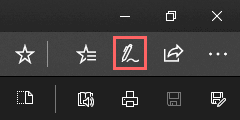
STEP 4:
Click on the “pen” icon and choose the right colour and size for you signature.
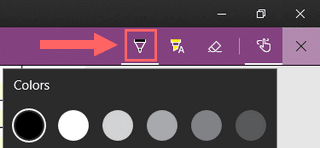
STEP 5:
Draw your signature by holding down left click and dragging your mouse. If you’re unhappy with the signature (or you’ve made a mistake) click on the “eraser” icon in the top right and ‘draw’ over your signature to erase it.

STEP 6:
When you’re satisfied with your signature, right click on the open PDF and click on “Save-As” to the document!

Have fun signing documents in a jiffy!

  • Share:
RTG Admin

Previous post

Outrageous Petrol Prices at the Pump? How to find Cheaper Petrol
May 1, 2018

Next post

5 Things You Can Ask Google to Save Time!
May 7, 2018

You may also like

Printers in 2025 – Home Office and Business
5 November, 2025

We’ve always wondered what printer to get when replacing our old one, and the different types can be confusing. Avoid the sales push at the physical stores by reading up …

6e825825-46df-86f9-d4bf-e058451f72de
Medisafe App
17 February, 2025
Mailchimp Header (20)
Telstra & Optus 3G Network Shutdown Delayed
22 August, 2024

Search

Categories

  • Client Stories
  • Events
  • In The Media
  • Our Team
  • Tech tips & tricks
  • timeline

"The beautiful thing about learning is that nobody can take it away from you" - Proudly Made in Melbourne, Australia

  • © Copyright 2021, ReadyTechGo Pty. Ltd